

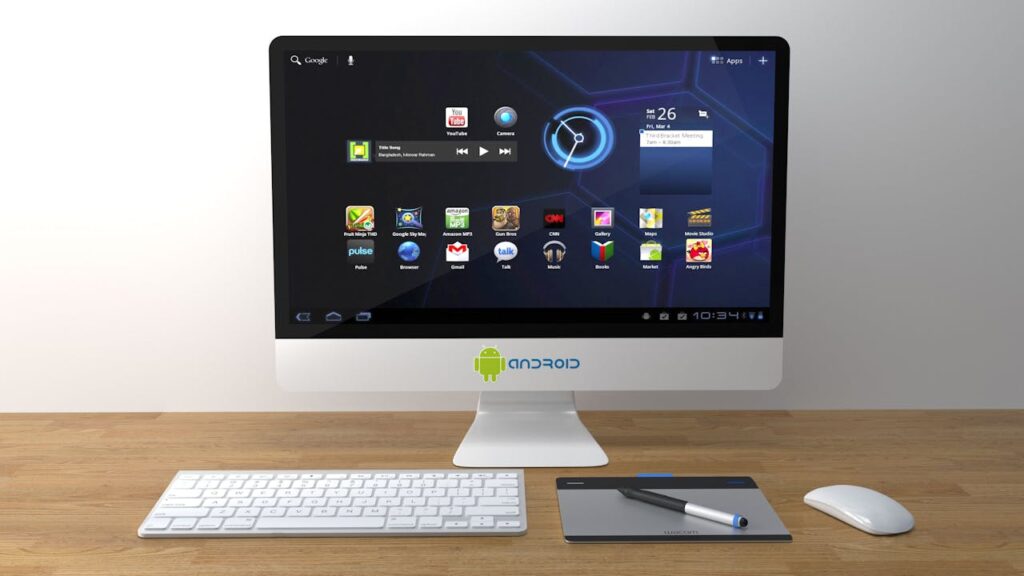
With the rising popularity of Android emulators and cross-platform software, using Android apps on a PC has never been more accessible. From gaming to messaging to productivity tools, users can now bring their favorite mobile apps to a bigger screen. However, this convenience comes with questions about safety and trust. Is it safe to run Android apps on a Windows or Mac computer? What should users be aware of before diving into downloads and installations?
In this article, we explore key things you need to know before running Android apps on your computer. From app sources to emulator security, understanding these basics can help prevent digital missteps and unnecessary risks.
Not All Android Emulators Are Created Equal
One of the most popular methods for running Android apps on a PC is by using an emulator. While options like BlueStacks, NoxPlayer, and LDPlayer are widely used, not every emulator available is trustworthy. Some may come bundled with intrusive ads or even suspicious background processes that slow down your machine or compromise privacy. Always stick with emulators that have positive user reviews, frequent updates, and a long-standing reputation. Avoid obscure programs that require odd permissions or install third-party software without asking. The emulator you choose plays a major role in how secure your experience will be.
Source of the App Matters—A Lot
Downloading apps from the Google Play Store inside an emulator is generally safer than using APK files from unknown websites. While APK files can provide access to apps that aren’t officially available in your region, they’re also a common method for distributing malware. Before installing any APK, verify that it comes from a known and credible source. There are online tools available that scan APK files for malicious content. Taking a moment to double-check can prevent major security headaches later.
Android Apps Still Need Permissions—Even on PC
Just like on your phone, Android apps running in an emulator may request permissions such as access to your microphone, location, files, or even your webcam. On a mobile device, we’ve grown used to these prompts—but on a PC, it can feel intrusive. Be cautious of websites that ask for permissions they clearly don’t need. For example, a calculator app requesting access to your media files or camera should raise immediate red flags. Limiting permissions where possible adds an extra layer of protection.
Performance Trade-Offs and Background Activity
Installing Android apps on a PC may sound like a productivity hack, but in reality, it can impact your system’s performance. Some emulators use a considerable amount of CPU and RAM, especially when running high-intensity games or multiple apps simultaneously. Others might continue running background services even when the app window is closed. This isn’t just about speed—it’s about safety too. Unchecked background activity can lead to unauthorized data collection, uninvited system changes, or overheating hardware. Monitor your system’s performance and check your Task Manager if you notice anything unusual after installing an Android app.
Security Software May Not Always Catch Threats
Many people assume that their desktop antivirus will protect them from anything harmful—including threats from Android apps. Unfortunately, that’s not always the case. Emulated environments operate differently, and certain malware designed for Android may evade detection if it doesn’t directly affect the PC’s operating system. To increase protection, use an antivirus that scans within virtual machines or Android containers. Additionally, keep your emulator and antivirus software regularly updated. If an app behaves strangely, uninstall it immediately and run a full system scan.
Conclusion
Running Android apps on your PC opens up a lot of exciting possibilities, from multitasking to enhanced gameplay. But before you hit “install,” it’s worth taking a moment to consider the safety implications. From emulator reliability to permission requests and suspicious APKs, there are several points where things can go wrong if caution is ignored. By understanding these five key areas, you’ll be better prepared to enjoy your favorite Android apps on a larger screen—without putting your system at unnecessary risk. A little precaution goes a long way in protecting both your data and your device.


